
Getting your SKU right for Amazon order matching
When SellerTally imports your Amazon settlement data, every sales, fee, and refund line in that data is matched to one of your Items using the row’s SKU. That match has to be exact — this page explains what “exact” means and where to find the SKU value Amazon actually uses.
The match is exact and case-sensitive
SellerTally compares your Item’s SKU field to the SKU on the Amazon row as plain text — no
fuzzy matching, no ignoring case. WIDGET-A and widget-a are two different SKUs as far as the
match is concerned. If they don’t line up character-for-character, that row won’t attach to the
Item you meant it for.
This matters because a mismatch doesn’t fail loudly. Your books stay balanced either way — the transaction still posts — but a row that couldn’t be matched to an Item won’t show up in that Item’s cost and profit numbers, so the reporting for that product quietly understates its real activity instead of throwing an error you’d notice right away.
Where to find your real Seller SKU
The value to put in an Item’s SKU field is the Seller SKU exactly as it appears in Seller Central — not a nickname, not how you refer to the product internally. It’s on your Manage Inventory listing, right alongside the ASIN.
-
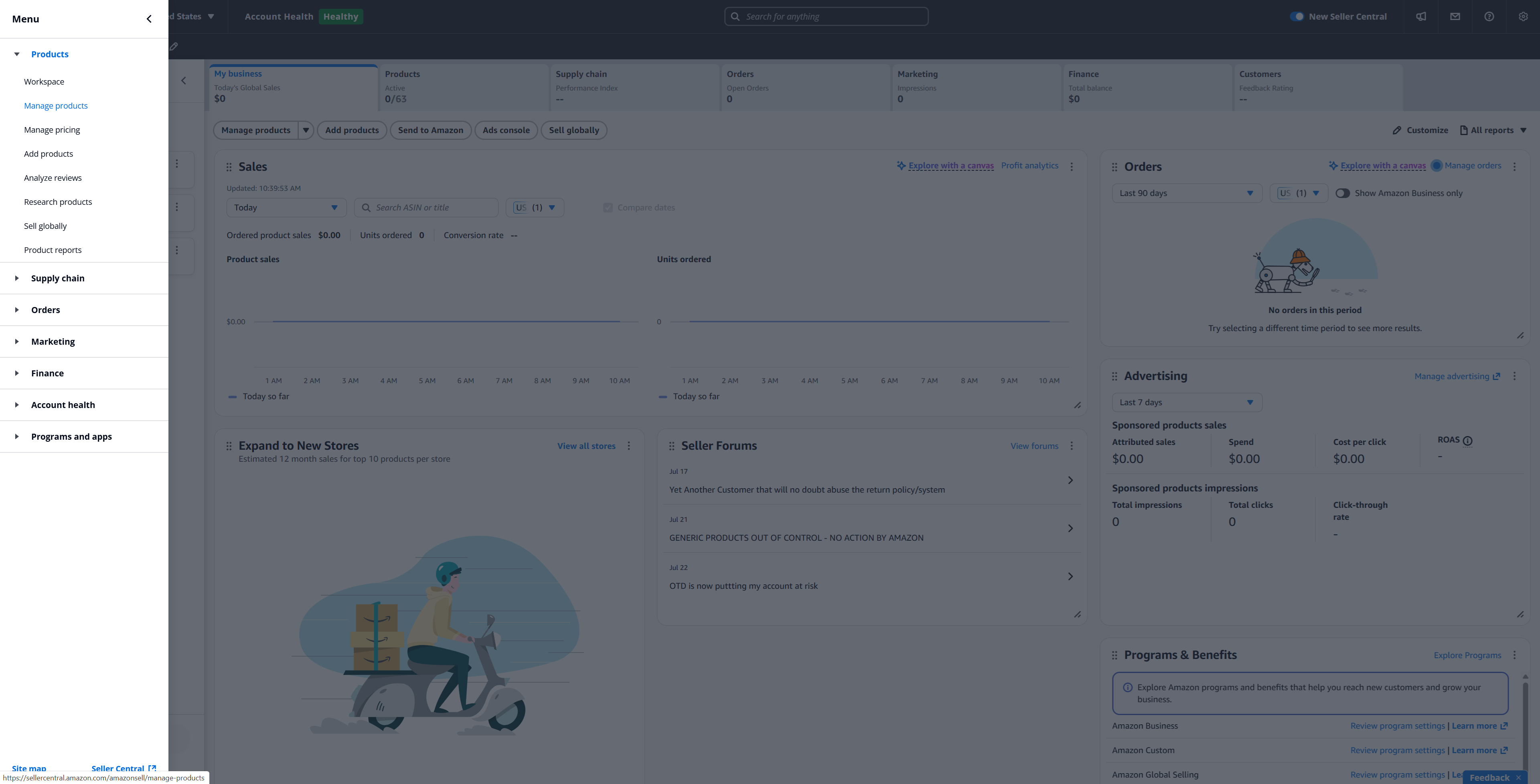
Click the Menu icon in the top-left corner, then click Products to expand it, then click Manage products.
-
On the product list, each row shows an ASIN | SKU line directly under the product title. The two values are separated by a vertical bar, and the one after the bar is your Seller SKU — so a line reading
B0XXXXXXXX | BLU-MUG-12OZmeans the SKU to copy isBLU-MUG-12OZ.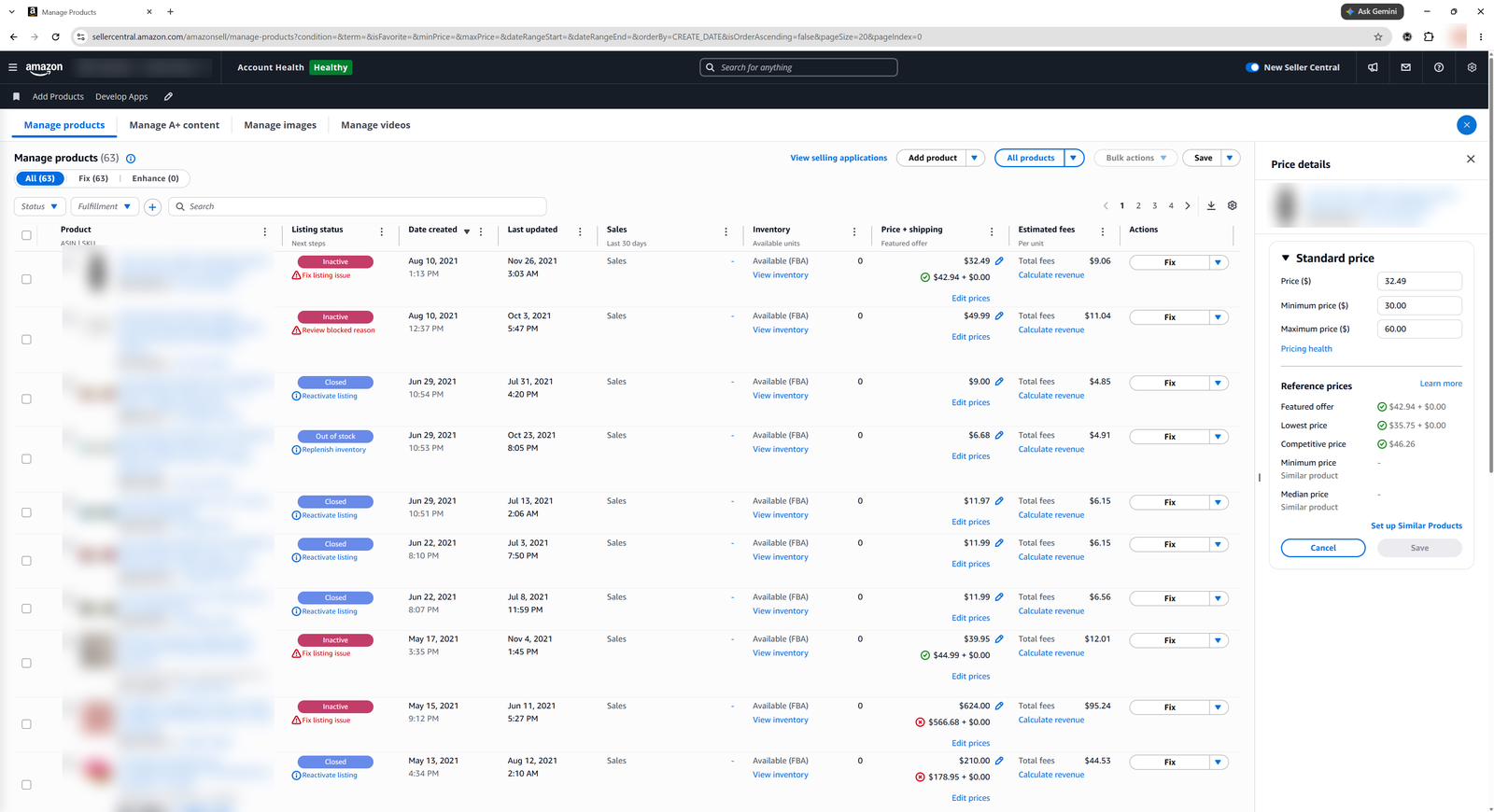
In this screenshot the product titles, ASINs and SKU values are blurred — it is a real seller account. What it is showing you is where on the row to look: the line immediately beneath the product title, with the ASIN first and your Seller SKU after the vertical bar.
Copy it directly rather than retyping it by hand — a stray extra space, or a dash/quote character that looks identical but isn’t the same character your word processor or spreadsheet used, is enough to break the match silently.
One Amazon-side gotcha to know about
A handful of report row types — most commonly FBA return and inbound-fee lines — show Amazon’s own internal fulfillment SKU (an “FNSKU”) instead of your Seller SKU. SellerTally can’t automatically resolve those to an Item today. If you notice fee or return lines that don’t seem to be landing against the right Item, that’s the likely cause — contact support and we can help get it sorted for your account.
Where this shows up in SellerTally
The SKU field lives on the Item screen (Setup > Item), only for items marked to be sold on Amazon. Set it once when you create the Item, and double-check it any time you rename a listing on Amazon’s side — SellerTally won’t know about the rename unless the Item’s SKU is updated to match.